
Keyboard Types Explained: Membrane, Mechanical, Optical & More

This post contains affiliate links. As an Amazon Associate, I earn from qualifying purchases. This means I may earn a small commission if you purchase through my links at no extra cost to you.
Introduction
If you’ve ever stood in front of a keyboard display at a tech store — or lost yourself down a Reddit rabbit hole at 2 am — you already know how overwhelming the options can get. Keyboards for gaming, keyboards for typing, keyboards for cramped laptop bags, keyboards that cost more than some laptops. But before you get into switch brands, layouts, and keycap materials, there’s a more fundamental question worth answering: what type of keyboard are you actually looking at?
Understanding keyboard types is the foundation of a smart purchase. It doesn’t matter whether you’re a first-time buyer upgrading from a crusty office membrane board or a seasoned enthusiast eyeing your next custom build — knowing what’s under the hood changes everything. The switch technology a keyboard uses affects how it feels to type on, how loud it is, how fast it responds, how long it lasts, and ultimately, whether you’ll enjoy using it every single day.
I’ve spent years testing keyboards across every category, from the cheapest membrane boards bundled with a desktop PC to high-end optical mechanicals that cost several hundred dollars. This guide breaks down every major keyboard type you’re likely to encounter, what makes each one work, and how to figure out which one actually belongs on your desk.
Why keyboard type matters for your setup
Here’s something that doesn’t get said enough: the best keyboard for someone else might be completely wrong for you. That’s not a cop-out — it’s just the reality of how personal keyboard preferences are. And a huge part of that comes down to switch technology.
Every time you press a key, something mechanical, electrical, or optical happens beneath the keycap to register that input. The specific mechanism defines the keyboard’s entire character — its feel, its sound, its actuation point, its lifespan, and its price. Two keyboards can look nearly identical and feel completely different to type on, purely because of what’s happening inside.
Your use case matters too. A writer who types for eight hours a day has different needs from a competitive gamer who needs sub-millisecond response times. A student working in a library needs a quieter keyboard than a programmer working from a home office. Someone who travels constantly needs something different from someone whose keyboard never leaves their desk. Knowing what each type is actually good at is what lets you make an informed call instead of just buying whatever has the most RGB and the highest review count.
Let’s get into it.
Membrane keyboards: affordable, quiet, and everyday-ready
Membrane keyboards are by far the most common type worldwide. If you’ve used a desktop PC at work, in a school computer lab, or at home without specifically shopping for something better, there’s a good chance you’ve been typing on one for years.
The mechanics are simple. Beneath the keycaps sits a flexible membrane layer — essentially a pressure-sensitive mat with electrical traces printed on it. When you press a key, it presses down on the membrane, completing a circuit. No individual mechanical switches, no metal springs, no clicking mechanisms. Just rubber domes and flexible plastic doing their job quietly and cheaply.
What makes membrane keyboards appealing:
- Price. This is the big one. A perfectly functional membrane keyboard can cost under $20. For budget-conscious buyers or anyone who just needs something that works, it’s hard to argue with.
- Noise level. Membrane keyboards are generally quiet. The rubber dome construction absorbs much of the sound from keypresses, making it a solid choice for shared office spaces or late-night typing.
- Spill resistance. The sealed membrane layer offers a degree of protection that most mechanical keyboards can’t match. Not a green light to pour your coffee into one, but they’re more forgiving.
- Availability. Walk into any electronics store, and you’ll find them everywhere — every size, shape, and color imaginable.
Where membrane keyboards fall short:
The main complaint you’ll hear — and it’s legitimate — is the typing feel. That soft, mushy resistance when you bottom out a key is a product of the rubber dome design. Some people don’t mind it; others find it fatiguing over long sessions. There’s also very little tactile feedback to tell you when a keypress has registered, so you end up bottoming out every single key every time.
Durability is another thing to consider. Most membrane keyboards are rated for around 5 to 10 million keystrokes per key. That sounds like a lot until you compare it to the 50-100 million keystroke ratings for quality mechanical switches.
Who should buy a membrane keyboard: Anyone who needs a no-frills, budget-friendly board for general office work or light typing. If feel isn’t a priority and you just need something that works, a membrane keyboard gets the job done.
Mechanical keyboards: the gold standard for tactile typing
Mechanical keyboards have a devoted following for a reason, and it’s not RGB lighting.
The core difference is simple: instead of a single pressure-sensitive membrane layer, mechanical keyboards use individual switches under every key. Each switch is a self-contained mechanism with its own spring, stem, and housing. When you press a key, the stem travels down inside the housing, compresses the spring, and completes an electrical circuit at a defined actuation point. That precision is what gives mechanical keyboards their feel.
Switch types: the heart of the mechanical experience
Not all mechanical switches are the same, and this is where the rabbit hole really starts.
Linear switches move straight down with consistent resistance — no tactile bump, no audible click. The keypress feels smooth from top to bottom. These are popular with gamers because there’s no hesitation in the stroke. Cherry MX Red and Gateron Yellow are the classic examples.
Tactile switches produce a noticeable bump partway through the keypress — a physical signal that the keystroke has registered without bottoming out. This is the sweet spot for many typists. It reduces fatigue and improves accuracy. Cherry MX Brown and Topre switches both fall under this category.
Clicky switches combine a tactile bump with an audible click, giving you physical and audio confirmation of each keypress. They’re satisfying to type on and deeply controversial to sit near. Cherry MX Blue is the most well-known example. Not recommended for shared spaces.
See our best mechanical keyboards ranking.
What makes mechanical keyboards worth it
The typing feel is the obvious answer, but there’s more to it. Mechanical keyboards are built to last — quality switches are rated for 50 to 100 million keystrokes, so a good board can outlast multiple membrane boards over the years. Many also feature hot-swappable switch sockets, meaning you can pull out switches and try different ones without any soldering. The customization options — different switches, custom keycaps, various layouts, programmable firmware — turn keyboard ownership into a real hobby.
Build quality is another factor. Most mid-range to premium mechanical boards use aluminum frames, steel plates, and premium keycaps that simply feel more substantial than budget membrane boards.
The downsides: They cost more — a good entry-level board starts around $50 to $70, and enthusiast-grade options run well into the hundreds. They’re also louder than membrane boards, especially with clicky switches. And they’re heavier, which matters if you travel.
Who should buy a mechanical keyboard: Writers, programmers, gamers, and anyone who spends real time at a keyboard and wants typing to be something they enjoy rather than just tolerate. If you’ve never tried a mechanical keyboard and you type a lot, it’s likely to be a revelation. If you want a deeper dive into switch construction, check out Hot-Swap Keyboards Explained: What They Are & Why You Might Need One.
Optical keyboards: speed and precision for the modern user
Optical keyboards look like mechanical keyboards. They often use the same switch housings and keycap compatibility. But the mechanism that registers a keypress is fundamentally different — and in some ways, better.
Instead of a physical metal contact completing a circuit when a key is pressed, optical switches use a light beam — typically an infrared LED — running through the switch housing. When you press a key, the stem interrupts that light beam and triggers the registration. No metal-on-metal contact involved.
Why optical switches matter
Speed. Because optical switches register via light rather than physical contact, actuation can happen faster and more consistently than with traditional contact points. For competitive gamers where milliseconds matter, that edge is real.
Durability. No physical metal contacts means no contact wear. Traditional mechanical switches can develop bounce or inconsistency as the contacts degrade over millions of keypresses. Optical switches sidestep this almost entirely. Many are rated for 100 million keypresses or more.
Consistent actuation. Physical contacts can vary slightly as they wear. Optical actuation stays consistent throughout the switch’s lifespan because the light beam doesn’t degrade.
No debounce delay. Traditional mechanical keyboards need a small debounce delay in the firmware to prevent a single keypress from registering multiple times as the contacts bounce together. Optical switches don’t bounce, so this delay can be cut or eliminated — which contributes to that faster response feel.
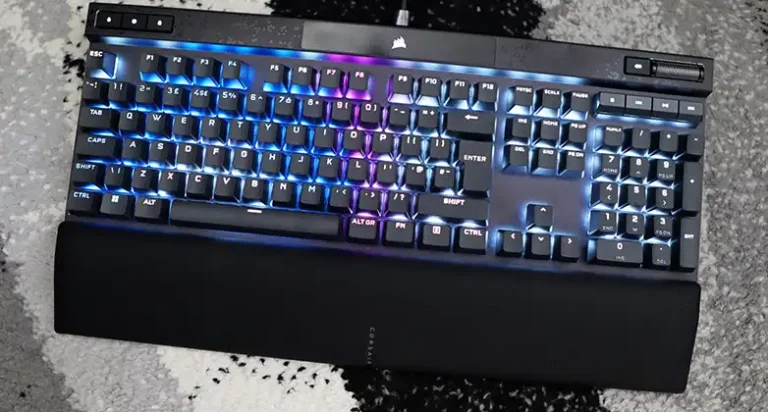
The Corsair K100 RGB uses OPX optical-mechanical switches with a 1.0mm actuation point, and part of what makes it feel so fast is exactly this architecture.
The trade-offs
Optical keyboards typically cost more than comparable traditional mechanical boards. The switch ecosystem is also smaller — you don’t have the same range of third-party optical options that you do with MX-compatible switches, so customization is more limited. That said, the market is growing.
Who should buy an optical keyboard: Competitive gamers who want the fastest possible response times, heavy users who want long-term durability and consistency, or anyone who’s pushed their current mechanical board hard and wants to step up.
Other keyboard types worth knowing: scissor-switch, butterfly, and hall effect
Beyond the three main types, a few others are worth understanding — especially if you’re shopping for a laptop, an ultra-thin external keyboard, or something on the cutting edge.
Scissor-switch keyboards
Scissor switches dominate laptop keyboards and low-profile external boards. The name comes from the X-shaped stabilizer — two interlocking plastic pieces that form a scissor shape — sitting between the keycap and the membrane beneath.
This design allows for much shorter key travel than standard membrane while maintaining more stability and a more consistent feel across the keycap surface. The result is a flatter, quieter keyboard with a firmer, more controlled stroke.
Apple’s Magic Keyboard, most laptops, and slim desktop boards from brands like Logitech use scissor-switch designs. If you like a low-profile typing experience and portability matters, scissor switches are meaningfully better than basic membrane.
The downside is the short key travel — typically 1 to 2mm — which some typists find tiring, and the feel won’t satisfy anyone used to mechanical switches.
Butterfly switches (and why they’re mostly gone)
Between 2015 and 2019, Apple introduced the butterfly mechanism in its MacBook lineup — an ultra-thin alternative to scissor switches that reduced key travel to as little as 0.5mm to achieve an extremely thin laptop profile.
The result was divisive at best and disastrous at worst. While technically impressive, the switches were notoriously unreliable. A single speck of dust could jam a key and make it stop repeating reliably. Apple faced class action lawsuits and replaced the design with a revised scissor mechanism in 2019.
The butterfly switch is now a cautionary tale about chasing thinness at the expense of function. You won’t find it in current products, but it’s worth knowing about if you’re buying a used MacBook from that era.
Hall effect (magnetic) keyboards
Hall effect switches are getting a lot of attention right now, and it’s deserved. Rather than a physical contact or a light beam, they use magnets and sensors to detect key position.
A magnet in the switch stem moves past a hall effect sensor in the housing, and the sensor reads the changing magnetic field to determine exactly where the key is in its travel. This analog position data is what enables “rapid trigger” — the ability to set custom actuation and reset points anywhere within key travel, with those points resetting the instant you start moving the key in the other direction.
For competitive FPS gaming — Counter-Strike 2, Valorant — rapid trigger is a genuine difference-maker. WASD inputs reset almost instantly when you lift a key, allowing for movement precision that traditional switches can’t replicate. The AULA WIN60 HE is a good example of a board built around this.
Hall effect switches are also essentially wear-proof — no physical contact, no light beam, just a magnet and a sensor. The main limitations right now are price and ecosystem maturity, but both are changing fast.
Hybrid keyboards
Some keyboards sit between categories. Hybrid boards typically combine elements of membrane and mechanical construction — individual switch-like feel with a membrane actuation layer beneath, or a mechanical-style board with dampening that mimics membrane acoustics.
These exist as a middle ground for buyers who want more tactile feedback than a standard membrane board without committing to the price or noise level of a full mechanical. They’re serviceable for the use case, though most people who try both pure mechanical and pure membrane end up finding hybrids a compromise rather than a best-of-both solution.
How to choose the right keyboard type
You’ve got a clear picture of each type. Now for the practical question: which one should you actually buy?
Here’s how I think about it after years of testing boards across every category.
If budget is your primary concern, a decent membrane or scissor-switch board does the job without asking much of your wallet. You won’t get a memorable typing experience, but for email, documents, and light browsing, it’s perfectly functional. A $20 to $40 budget gets you plenty of options.
If you type a lot and want a keyboard you actually enjoy using, go mechanical. A good entry-level board in the $60 to $100 range earns its price pretty quickly when you’re using it every day. Start with tactile switches (browns) if you want feedback without much noise, or linears (reds) if you prefer smooth and quiet. Get a hot-swappable board so you can try different switches over time without buying a whole new keyboard.
If gaming performance is your priority, optical and hall effect keyboards are worth the extra money. Faster actuation and no debounce delay in optical boards make a real difference in competitive play. If you’re an FPS player and you’re willing to spend more, hall effect with rapid trigger support is the most impactful hardware upgrade you can make to a gaming setup right now — more so than a new mouse, probably.
If you work on a laptop or need an ultra-slim board, a quality scissor-switch keyboard is the right call. Apple’s Magic Keyboard or a well-reviewed low-profile mechanical option gives you a better experience than membrane in a form factor that actually works on the go.
If you want maximum durability and long-term consistency, optical is hard to beat. No physical contacts means these boards stay consistent for tens of millions of keypresses — a smart investment if you’re a heavy daily user.
A few other things worth factoring in:
- Noise: If you work in a shared space, avoid clicky mechanicals. Lean toward linears, membrane, or hall effect. Your colleagues will thank you.
- Customization: If you think you might want to swap switches or go deep on the hobby later, get a hot-swappable mechanical from the start. It opens up the entire world of switch and keycap customization.
- Wireless: Mechanical keyboards with tri-mode connectivity (Bluetooth, 2.4GHz wireless, and USB-C wired) are widely available at reasonable prices. The AULA F75 Keyboard and Keychron K4 Keyboard both prove you don’t have to sacrifice much to go cable-free.
Conclusion
The keyboard world is bigger than most people expect when they first start poking around in it. What looks like a simple input device is actually a spectrum of technologies — membrane, mechanical, optical, scissor-switch, hall effect, hybrid — each with its own strengths, trade-offs, and ideal situations.
The short version: membrane is cheap and quiet but mushy. Mechanical offers the best typing feel and customization options. Optical is faster and more durable over the long run. Scissor switches are the go-to for thin, portable setups. Hall effect is the emerging technology to watch, especially if competitive gaming is your thing.
None of these is universally better than the others — the right answer depends entirely on what you need and how much you want to spend. But at this point you’ve got enough to cut through the noise and make a call that actually makes sense for your setup.
If you’re still on the fence: if you’ve never tried a mechanical keyboard and you type more than a few hours a day, try one. Borrow a friend’s if you can, or pick up an affordable entry-level board. For a lot of people it’s one of those upgrades that makes you wonder why you waited so long.
Happy typing.



![[Explained] Can Trojan Affect Keyboard?](https://keyboardhunter.com/wp-content/uploads/2023/02/Can-Trojan-Affect-Keyboard-768x431.webp)