
How to Test Your Keyboard Online (Every Key in Seconds)

How to Test Your Keyboard Online (Every Key in Seconds)
If you’ve spent any real time hunting for the right mechanical keyboard, you already know not all boards are created equal — and even a great one can develop problems over time. A stuck key here, a missed input there, and suddenly your expensive custom build feels like it’s working against you. Running a quick keyboard test is one of the simplest things you can do to stay ahead of those issues, and you don’t need to download anything to do it. If you’re still comparing options, our guide to the best mechanical computer keyboards in 2026 can help you choose a board worth testing.
Online keyboard testers have become the go-to for enthusiasts and casual users alike. They’re fast, browser-based, and work on virtually any keyboard. Whether you’re unboxing something brand new or troubleshooting a board that’s seen years of daily use, a keyboard test takes less than a minute and can tell you a lot about what’s actually going on under those keycaps.
What an online keyboard test actually does
An online keyboard test is a web-based tool that detects and displays keystrokes in real time using your browser’s built-in keyboard event listeners. When you press a key, your browser registers a “keydown” event and passes that to the testing tool, which highlights the corresponding key on an on-screen layout. No installation, no account — open the page and start typing.
Modern browsers expose keyboard events through standard JavaScript APIs, so any website can listen for key presses without needing deep OS access. The tester captures those events and provides a visual response for every key that registers. That’s genuinely all there is to it.
These tools also work across a wide range of hardware. Full-size mechanical boards with Cherry MX switches, compact 60% boards with hot-swappable linears, office membrane keyboards, laptop chiclet keys, gaming boards with macro keys — an online tester handles them all. Some tools even catch media keys and special function keys, though coverage there varies by browser.
When it makes sense to run a test
There are more reasons to test your keyboard than most people realize.
You just received a new keyboard. This is the most important one. Before you get attached to a new board — especially a budget pick or a used purchase — take two minutes and run every key through a tester. Manufacturing defects and shipping damage are real, and catching a dead key on day one means you can still file a warranty claim or return it without a fight. If you want a broader buying checklist, see our computer keyboard buying guide.
You’re noticing missed keystrokes while typing or gaming. If characters are dropping out mid-sentence or in-game inputs aren’t landing consistently, a keyboard test tells you whether it’s a hardware problem or something else on your system.
Keys feel sticky, mushy, or unresponsive. Physical feel and actual registration aren’t always the same thing, but they’re often related. A key that feels off might be on its way out. A tester will confirm whether it’s still registering.
You had a liquid spill. Coffee, water, energy drinks — it happens. After a spill, run a full test once the board has completely dried out. Liquid damage often kills specific keys while leaving others perfectly functional, and you need the full picture before deciding whether to repair or replace. If the problem started after cleaning, our guide on mechanical keyboard not working after cleaning may also help.
You’re buying or selling a used keyboard. If you’re picking up a secondhand board from a forum or marketplace, test it before money changes hands. Sellers should do the same before listing. It’s basic good practice.
Your gaming inputs feel inconsistent. If movement keys or action binds seem to lag or miss in a fast-paced game, a keyboard test helps you rule out hardware before you start blaming your connection or game settings.
How to run a keyboard test, step by step
Step 1: Pick a reliable keyboard test website. Look for a tool that shows a full keyboard layout, highlights keys as you press them, and clearly marks pressed versus unpressed keys. Popular options include keyboard-test.com and keyboardchecker.com. Stick to well-known tools — you want something focused, not a page loaded with questionable scripts.
Step 2: Open the tool and click into the test area. Most keyboard testers need you to click the page first so the browser knows to capture your keystrokes rather than pass them off to browser functions. A lot of people skip this and then wonder why some keys aren’t showing up.
Step 3: Press every key, row by row. Start at the top-left with Escape and the function row, then work your way down. Go slowly, one key at a time. It makes any dead key obvious.
Step 4: Watch the on-screen layout. Most testers color-code pressed keys — often green or blue — while unpressed keys stay gray. Any key that doesn’t change color when you press it didn’t register.
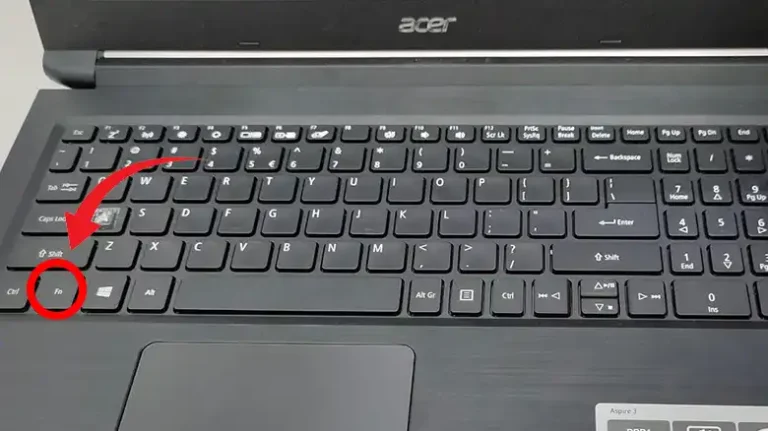
Step 5: Don’t skip the modifier and special keys. Shift, Ctrl, Alt, the Windows or Command key, the Menu key — easy to overlook, worth testing. The same goes for Print Screen, Scroll Lock, Pause/Break, and the numpad on a full-size board.
Step 6: Write down anything that didn’t register. A single dead key is a very different situation from an entire row going silent. Note it before you forget.
What to do if your keyboard fails the test
A key that doesn’t register doesn’t automatically mean the board is done. A few things are worth trying first.
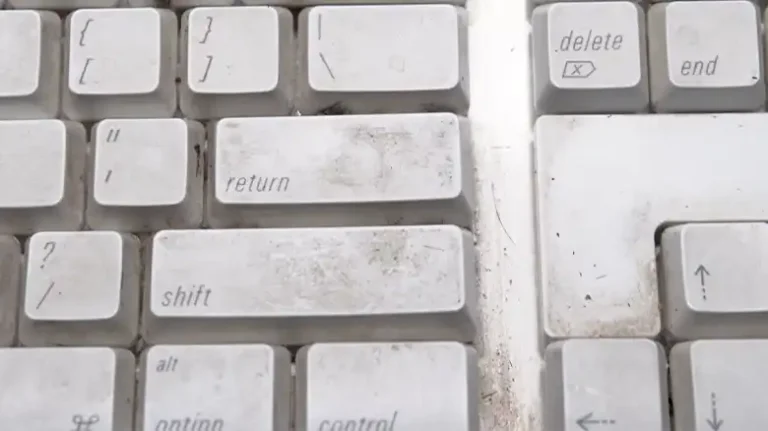
Clean under the keycaps. On a mechanical keyboard, dust and debris can stop the switch stem from fully depressing. Pull the keycap, check the switch underneath, and clear out any junk with a brush or compressed air. On membrane keyboards, the process is messier, but even a quick blast of compressed air around the problem key can sometimes free up a stuck mechanism.
Update or reinstall your keyboard drivers. This matters most for gaming keyboards with companion software or any board with custom drivers. Go to Device Manager on Windows, find the keyboard entry, and update or reinstall it. A corrupted driver is sometimes the entire problem.
Test on a different device or browser. Plug the keyboard into another computer and run the test again. If the same keys fail, it’s almost certainly hardware. If they pass on the second machine, you’re looking at a driver or OS issue on the first one. Also worth trying: a different browser, since extensions and browser settings can interfere with key event detection.
Try a different USB port or cable. On a wired board, swap to a different port or try a different cable if the keyboard uses a detachable one. Wireless boards should be tested with fresh batteries or a full charge.
Know when to cut your losses. If the key still fails after all of the above, it’s likely a hardware problem at the switch or PCB level. On a hot-swappable mechanical keyboard, swapping a switch takes about five minutes. If you’re shopping for one, the best hot-swappable keyboards are a good place to start. On a soldered board, you’re looking at desoldering work — doable if you have the tools, not worth it for a budget board. If multiple keys are failing or the failures are spreading, replacement is usually the more practical call.
Tips for getting accurate results
Use Chrome or Firefox. Both handle keyboard events consistently and predictably. Edge works fine in most cases. Older or niche browsers may handle JavaScript key events differently and can skew your results.
Disable browser extensions before testing. Password managers, productivity tools, and browser shortcuts can intercept keystrokes before they reach the tester. Run the test in a private or incognito window — extensions are usually disabled there by default. This is especially worth doing when testing Ctrl, Alt, and function keys.
Be aware of system-level shortcuts. On Windows, the Windows key and Print Screen trigger OS actions that may not be captured by a browser tester. On Mac, certain key combinations get captured before the browser even sees them. Some testers handle this better than others, so don’t panic if those specific keys seem inconsistent.
Run the test on multiple sites. No single keyboard tester is perfect. Testing on two or three different tools gives you much more confidence in what you’re seeing. If a key fails across multiple testers, it’s almost certainly hardware. If it only fails on one site, the tester may be the problem.
Pay attention to the pattern of failures, not just individual keys. A single dead key points to a switch issue or debris. An entire row not responding suggests a trace problem on the PCB. A cluster of keys failing after a spill points to liquid damage in that area. The pattern usually tells you more than any one failure on its own.
Conclusion
A keyboard test takes less than two minutes and requires no software, which makes it one of the easier diagnostic habits to actually stick to. Whether you just unboxed a new board, picked something up secondhand, or noticed something feeling a little off with your daily driver, an online keyboard tester gives you clear, immediate answers.
Run a test when you first set up a new board, after any hardware or driver changes, and any time something feels off. Catching a problem early is almost always easier and cheaper than dealing with it later — and there’s something genuinely satisfying about pressing through every single key and watching them all light up green.
![[Explained] How to Turn on 2.4g Wireless Keyboard?](https://keyboardhunter.com/wp-content/uploads/2023/10/How-to-Turn-on-2.4g-Wireless-Keyboard-768x431.webp)