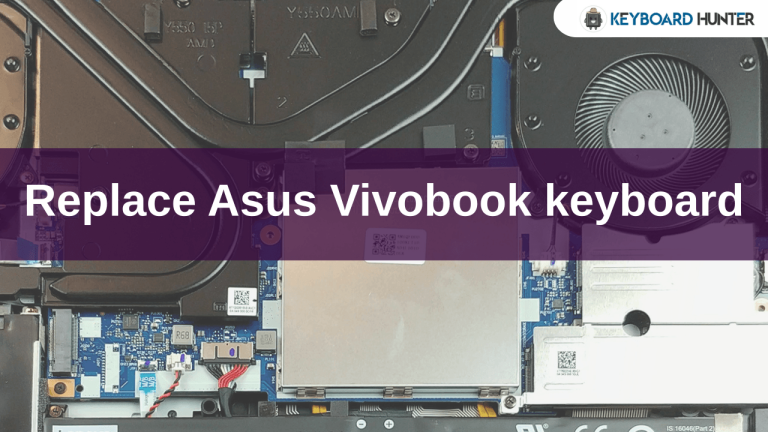
How to replace Acer Nitro 5 laptop keyboard?

So, you're experiencing some keyboard troubles with your trusty Acer Nitro 5, huh? It's a common headache for laptop users, and it can be super frustrating, especially when you're in the middle of a game or trying to get some work done. Before you panic, let's talk about what might be going on. Your laptop keyboard might be acting up due to a few common culprits. Sometimes, it's as simple as accumulated dust and grime beneath the keys, making them sticky or unresponsive. Other times, a rogue liquid spill can wreak havoc on the internal circuits. Then there's the wear and tear from extensive use, which can lead to individual keys failing or the entire keyboard becoming unreliable. Less commonly, but still possible, are software glitches or driver issues that interfere with the keyboard's functionality. Before jumping into a full replacement, it's always a good idea to rule out these simpler problems. If you're seeing issues like keys cutting out randomly, having to press them multiple times, or keys not responding at all, it might be time to consider a hardware fix.
Acer Nitro 5 Keyboard Replacement Video Guide
Quick Sanity Checks Before You Replace Your Acer Nitro 5 Keyboard
Hold your horses for a second! Before you dive into the deep end of disassembling your laptop to replace Acer Nitro 5 keyboard, let's do a few quick checks. Trust me, it could save you a lot of time and effort.
- Check for software issues: Sometimes, the problem isn't physical. Try uninstalling and reinstalling your keyboard drivers. You can usually find this in Device Manager. Reboot your laptop afterward; Windows should automatically reinstall the drivers.
- Test with an external keyboard: Plug in a USB keyboard. If it works perfectly, then you know for sure the issue is with your laptop's integrated keyboard, not the operating system or internal connections to the motherboard.
- Perform a power drain: Some users have had success by performing a power drain. You can often do this by inserting a paperclip into a small battery reset hole on the bottom of the laptop and holding it for about 30 seconds. Then restart your computer.
- Check for physical obstructions: Have you spilled anything recently? Even crumbs or pet hair can get under keys and cause problems. A can of compressed air can sometimes clear out debris.
- Check BIOS settings: Occasionally, incorrect BIOS settings can affect keyboard functionality. You can try loading default BIOS settings.
Step-by-Step Guide to Replace Acer Nitro 5 Keyboard
Alright, if you've done all the sanity checks and you're still facing a non-responsive keyboard, it's likely a hardware issue, and it's time to replace Acer Nitro 5 keyboard. This process can be a bit involved, as the keyboard in many Acer Nitro 5 models is integrated with the palm rest, and might even involve plastic welds, making it a more complex replacement than just a simple swap. Take your time, stay organized, and work carefully.
What You'll Need:
- A new replacement keyboard (ensure it's the correct model for your Acer Nitro 5, checking for backlighting, layout, and any specific model variations).
- Small Phillips head screwdrivers (#0 and #1 are common).
- A plastic opening tool or spudger (essential for prying without damaging components).
- Tweezers (optional, but very helpful for delicate cables).
- An anti-static wrist strap (highly recommended to prevent static damage).
- A clean, well-lit workspace.
- Small containers or a magnetic mat to keep screws organized.
Let's Get Started!
Step 1: Prepare Your Workspace and Laptop
First things first, make sure your laptop is completely shut down, not just asleep, and disconnect the power adapter. Remove any external peripherals like USB drives or mice. It's always a good practice to back up your data before starting any major repair. Clear your workspace and lay down an anti-static mat if you have one. Put on your anti-static wrist strap.
Step 2: Remove the Back Panel
Flip your Acer Nitro 5 over. You'll see a bunch of screws holding the back panel in place. Carefully remove all of them. Keep them organized in separate piles or containers, as they might vary in size and length. [cite: 0:00:06.480, 7, 12] Once all screws are out, use your plastic opening tool or spudger to gently pry open the back panel. Start from a corner or an edge and work your way around, carefully releasing the clips. Take your time here; you don't want to crack the plastic.
Step 3: Disconnect the Battery
This is a critical safety step to avoid any electrical damage. Locate the battery inside your laptop. It's usually a large, flat component. You'll see a cable connecting it to the motherboard. Carefully disconnect this cable. Some batteries also have screws holding them in place, so remove those if present. [cite: 0:00:06.480, 1, 3]
Step 4: Remove Internal Components to Access the Keyboard
Now, this is where it gets a bit more involved. To get to the keyboard, you often need to remove several other components first. Take photos at each step to remember how everything goes back together!
- Remove RAM and SSD/HDD: Carefully unclip and remove the RAM modules. If your laptop has an SSD or HDD, unscrew it and disconnect its cable. [cite: 0:00:06.480]
- Disconnect various cables: The video transcription mentions removing USB port, touchpad, keyboard cable, and power jack connections. [cite: 0:00:06.480] You'll also need to disconnect the Wi-Fi card connections. [cite: 0:00:06.480, 3] These cables are often ribbon cables secured by small flip-up latches. Gently lift the latch, then slide the ribbon cable out. Be extremely careful not to tear these delicate cables. The keyboard itself will have at least one ribbon cable, and possibly another for backlighting.
- Remove Motherboard Screws: You'll need to remove all screws holding the motherboard in place. [cite: 0:00:06.480] In many Nitro 5 models, the entire motherboard needs to be lifted out to access the keyboard, which is often integrated with the top palm rest.
- Separate the Upper Casing/Palm Rest: Once the motherboard and other components are out, you should be able to separate the upper casing (palm rest) from the bottom chassis. This is the piece that contains the keyboard.
Step 5: Remove the Old Keyboard
This is often the trickiest part for Acer Nitro 5 models. Many Acer Nitro 5 keyboards are not simply screwed in; they might be held in place by a metal frame, screws, or even plastic rivets (sometimes called "plastic welds") that are melted onto the plastic palm rest.
- Screws: If your keyboard is held by screws, simply unscrew them.
- Plastic Rivets/Welds: If you find plastic rivets, you'll need to carefully melt or cut them to release the old keyboard. This is a delicate process. A small soldering iron with a fine tip can be used carefully to melt the plastic, or a sharp knife to gently cut them. Be very cautious not to damage the palm rest. Some people choose to replace the entire palm rest assembly with the keyboard already attached to avoid dealing with the rivets.
- Pry off the old keyboard: Once all fasteners are removed or released, carefully pry the old keyboard away from the palm rest.
Step 6: Install the New Keyboard
With the old keyboard out, it's time to put in the new one.
- Align and Secure: Place the new keyboard into the palm rest, ensuring it aligns perfectly with the cutouts and screw holes. If it uses rivets, you might need to find a way to secure it, possibly by gently melting the plastic back or using a strong adhesive. Some videos suggest that simply screwing the metal frame back in might be enough without re-gluing the plastic rivets.
- Reconnect Ribbon Cables: Carefully insert the keyboard's ribbon cable(s) into their respective connectors on the motherboard (or the extension board if one is present). Ensure they are fully seated and then close the latches to secure them. Double-check for correct alignment.
Step 7: Reassemble Your Laptop
Now, just reverse the steps you took to disassemble it!
- Install Motherboard: Carefully place the motherboard back into its position and secure it with all its screws. [cite: 0:00:06.480]
- Reconnect Internal Components: Reinstall the Wi-Fi card, SSD/HDD, and RAM modules. Connect all other cables (USB port, touchpad, power jack) you disconnected earlier. [cite: 0:00:06.480]
- Reconnect the Battery: Plug the battery cable back into the motherboard.
- Replace the Back Panel: Carefully align the back panel and snap it back into place. Secure it with all the screws you removed earlier.
Step 8: Test Your New Keyboard
Once everything is screwed back together, plug in your power adapter and turn on your Acer Nitro 5. Test every single key on the new keyboard to make sure they are all working correctly and responding as they should. Don't forget to check the backlighting too! If you encounter any issues, power down the laptop, disconnect the battery, and recheck all ribbon cable connections, ensuring they are seated properly and latched.
Replacing a laptop keyboard, especially on models like the Acer Nitro 5, can be a challenging but rewarding DIY project. With patience and careful execution, you can breathe new life into your machine! Good luck!
See our keyboards rankings:



![[Explained] Can You Clean Keycaps with Isopropyl Alcohol?](https://keyboardhunter.com/wp-content/uploads/2023/10/Can-You-Clean-Keycaps-with-Isopropyl-Alcohol-768x431.webp)