How to replace Lenovo Ideapad Gaming 3 laptop keyboard?

Is your Lenovo Ideapad Gaming 3 keyboard acting up? Perhaps some keys aren't responding, or the entire keyboard has stopped working. These issues can be incredibly frustrating, especially for a gaming laptop where quick and precise input is crucial. Common culprits for a malfunctioning keyboard include accidental liquid spills, which can corrode internal components, or physical damage from drops or impacts. Sometimes, it's just wear and tear from extensive use, leading to individual key failures. Dust and debris accumulation under the keys can also prevent them from registering presses correctly. Whatever the cause, a non-responsive keyboard can severely hinder your laptop's usability, making a replacement a necessary fix.
Before You Replace: Sanity Checks
Before you jump into replacing your Lenovo Ideapad Gaming 3 keyboard, it's a good idea to perform some sanity checks. Sometimes, the problem isn't hardware-related but a software glitch or a minor connection issue. These steps can save you time and money if a full replacement isn't actually needed.
- Restart Your Laptop: This might seem obvious, but a simple reboot can often resolve temporary software conflicts or driver issues that might be affecting your keyboard's functionality.
- Check for Driver Issues: Go to Device Manager (you can search for it in the Windows search bar) and expand "Keyboards." Look for any yellow exclamation marks next to your keyboard device, which indicate a driver problem. You can try right-clicking and selecting "Update driver" or "Uninstall device" and then restarting your laptop to let Windows reinstall the driver.
- Run the Keyboard Troubleshooter: Windows has built-in troubleshooters that can automatically detect and fix common problems. Search for "Troubleshoot settings" and look for the keyboard troubleshooter.
- Test with an External Keyboard: Connect a USB keyboard to your laptop. If the external keyboard works perfectly, it strongly suggests a hardware issue with your laptop's integrated keyboard. If the external keyboard also doesn't work, the problem might be with the operating system or the laptop's motherboard.
- Check for Sticky Keys or Filter Keys: Sometimes, accessibility features like "Sticky Keys" or "Filter Keys" can inadvertently be turned on, causing the keyboard to behave erratically. You can check these settings in Windows by searching for "Ease of Access keyboard settings."
- Scan for Malware: Malicious software can interfere with your system's functionality, including input devices. Run a full system scan with your preferred antivirus software.
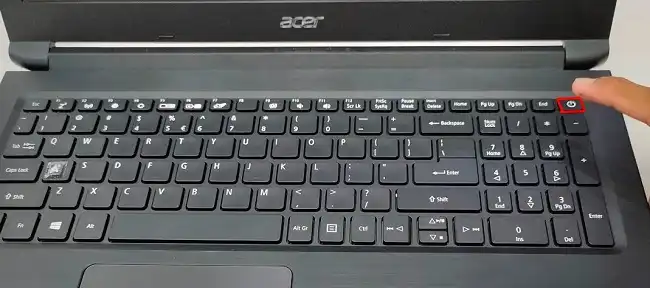
- Perform a Hard Reset (Power Cycle): Turn off your laptop, unplug the power adapter, and remove the battery if it's external. Press and hold the power button for 15-30 seconds. Then, reinsert the battery (if applicable), plug in the power adapter, and try turning it on. This can sometimes clear residual power and reset hardware components.
- Inspect for Visible Damage: Carefully inspect the keys and the area around them for any visible signs of damage, debris, or liquid residue. Sometimes, just cleaning out some dust can bring a few keys back to life.
Lenovo Ideapad Gaming 3 Keyboard Replacement Guide
Step-by-Step Guide to Replace Lenovo Ideapad Gaming 3 Keyboard
Replacing the keyboard on your Lenovo Ideapad Gaming 3 can seem daunting, but by following these detailed steps, you can successfully replace your old, faulty keyboard with a new one. This guide will walk you through the process, ensuring you understand each phase of replacing your Lenovo Ideapad Gaming 3 keyboard.
What You'll Need:
- A new replacement keyboard for Lenovo Ideapad Gaming 3. Ensure it's the correct model and layout.
- Small Phillips head screwdriver.
- Plastic spudger or thin pry tool.
- Anti-static wrist strap (recommended to prevent static discharge).
- A clean, well-lit workspace.
Step 1: Power Down and Disconnect
Before you begin any repair, it's crucial to ensure your laptop is completely powered off to prevent electrical shock or damage to components.
- First, shut down your Lenovo Ideapad Gaming 3 completely.
- Next, unplug the AC power adapter from the laptop.
- Then, disconnect any peripherals like USB drives, external monitors, or mice.
Step 2: Remove the Bottom Cover
Accessing the internal components, including the keyboard connection, requires removing the laptop's bottom cover.
- Carefully flip your laptop over onto a soft, clean surface to protect the screen and lid.
- Locate all the Phillips head screws securing the bottom cover. There are usually around 10-12 screws, some of which might be hidden under rubber feet.
- Using your Phillips head screwdriver, remove all these screws. Keep them organized, as they might vary slightly in size.
- Once all screws are removed, use your plastic spudger or pry tool to carefully separate the bottom cover from the main chassis. Start from a corner or an edge and gently work your way around, releasing the plastic clips.
- Lift the bottom cover away and set it aside.
Step 3: Disconnect the Battery
To ensure safety and prevent any accidental short circuits while working inside the laptop, disconnecting the battery is essential.
- Locate the battery pack, which is usually a large, rectangular component.
- Carefully identify the battery connector on the motherboard. It's typically a small, ribbon-like cable.
- Gently pry up the battery connector from its socket on the motherboard using a plastic spudger or your fingernail. Do not pull on the wires.
Step 4: Locate and Disconnect the Keyboard Ribbon Cables
The keyboard is connected to the motherboard via one or more ribbon cables. You'll need to disconnect these.
- Locate the keyboard's ribbon cables. There are usually two: one wider cable for the main keys and a narrower one for the keyboard backlight (if applicable).
- Each ribbon cable will have a small latch or clasp mechanism securing it in its connector. Carefully flip up the latch (usually black or brown) on each connector.
- Once the latch is open, gently pull the ribbon cable straight out of the connector. Be very careful not to tear the ribbon.
Step 5: Remove the Old Keyboard
The keyboard on many Ideapad Gaming 3 models is integrated into the top case (palm rest assembly) and often involves removing the motherboard and other components to access its mounting points.
- At this point, you might need to remove several other components to fully access and replace the keyboard. This could include the SSD, Wi-Fi card, and potentially the motherboard itself, depending on how the keyboard is secured.
- Carefully remove any screws holding the motherboard or other components that are obstructing the keyboard's removal.
- Gently lift out the components. It's often easier to remove the entire top case assembly with the old keyboard attached.
- Once the top case is separated, you'll see how the keyboard is secured to it. Keyboards are often held in place by numerous small screws, plastic rivets, or adhesive tape.
- If it's screwed in, remove all the small screws securing the keyboard to the palm rest assembly. If it's riveted or glued, you may need to carefully pry it loose, which can sometimes damage the palm rest. In some cases, the keyboard is part of a larger top case assembly, and you replace the entire assembly.
- Carefully lift the old keyboard away from the palm rest.
Step 6: Install the New Keyboard
Now, it's time to put your new keyboard in place.
- Take your new replacement keyboard and carefully align it into the palm rest assembly, ensuring all screw holes or mounting points line up.
- If your old keyboard was screwed in, secure the new keyboard with the small screws you removed earlier. Do not overtighten.
- If the keyboard is part of a larger top case, you'll be installing the entire new top case assembly.
Step 7: Reconnect Ribbon Cables and Reassemble
Work in reverse order to put everything back together.
- Carefully place any removed components (like the motherboard, SSD, Wi-Fi card) back into their positions and secure them with their screws.
- Gently slide the keyboard ribbon cables back into their respective connectors on the motherboard. Ensure they are fully seated and then push down the latches to secure them.
- Reconnect the battery connector to the motherboard, ensuring it clicks firmly into place.
- Align the bottom cover with the chassis and gently press it down until all the plastic clips snap back into place.
- Replace all the Phillips head screws on the bottom cover.
Step 8: Test Your New Keyboard
The final step is to power on your laptop and ensure the new keyboard is working correctly.
- Plug in the AC power adapter.
- Turn on your Lenovo Ideapad Gaming 3.
- Once Windows loads, open a text editor (like Notepad) and test every key on your new keyboard to ensure it registers correctly. Also, check the function keys and backlight (if applicable).
Congratulations! You have successfully managed to replace Lenovo Ideapad Gaming 3 keyboard. If you encounter any issues, retrace your steps to ensure all cables are securely connected and no screws are loose.
See our keyboards rankings: